> ## Documentation Index
> Fetch the complete documentation index at: https://docs.murnitur.ai/llms.txt
> Use this file to discover all available pages before exploring further.
# Installation
## SDK Setup Requirements
Setting up the SDK is required only if you wish to trace your LLM application. Currently, we support both Python and TypeScript, with ongoing efforts to enhance and expand our capabilities in these languages.
```bash python theme={null}
pip install murnitur
```
```bash typescript theme={null}
npm i murnitur
```
## Get API Key
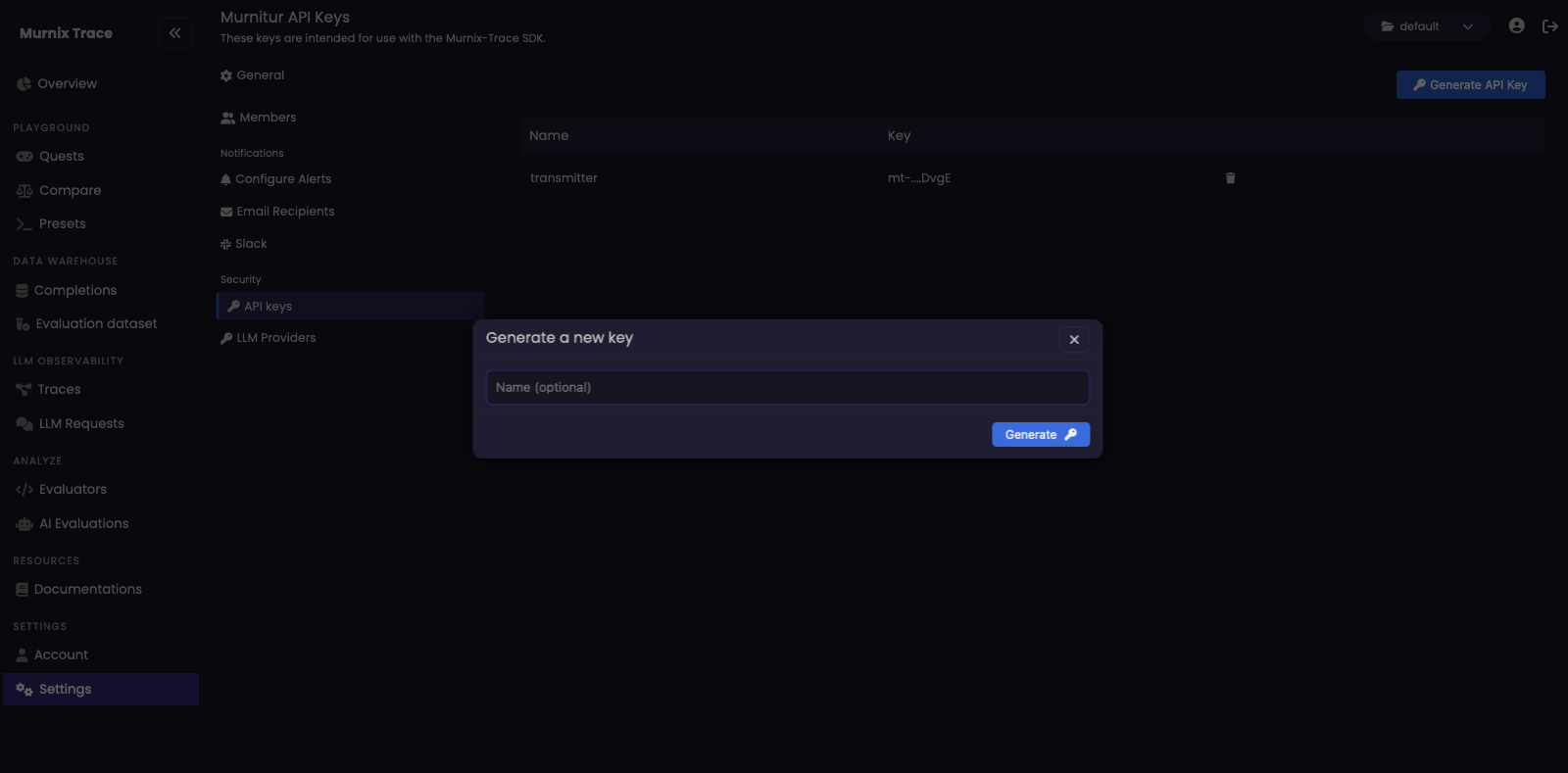 To generate an API key for the SDK, follow these steps:
1. Log in to your account on [murnitur.ai](https://murnitur.ai).
2. Navigate to the **Settings** page.
3. Locate the API key section and generate a new key.
4. Copy the generated API key.
5. Add the copied API key to your SDK configuration.
This key will enable the SDK to authenticate subsequent request to murnitur.ai.
```python python theme={null}
import murnitur
murnitur.set_api_key("mt-ey...")
murnitur.init()
```
```typescript typescript theme={null}
import * as murnitur from "murnitur"; // Must precede any llm module imports
murnitur.setApiKey("mt-ey..."); // or set MURNITUR_API_KEY in the .env file
murnitur.init();
```
You can also set up the API key as follows:
```bash theme={null}
export MURNITUR_API_KEY=mt-ey...
```
Setting the API key in the environment is advantageous because it eliminates the need to pass the key to functions that require it, as Murnitur will automatically detect it.
To generate an API key for the SDK, follow these steps:
1. Log in to your account on [murnitur.ai](https://murnitur.ai).
2. Navigate to the **Settings** page.
3. Locate the API key section and generate a new key.
4. Copy the generated API key.
5. Add the copied API key to your SDK configuration.
This key will enable the SDK to authenticate subsequent request to murnitur.ai.
```python python theme={null}
import murnitur
murnitur.set_api_key("mt-ey...")
murnitur.init()
```
```typescript typescript theme={null}
import * as murnitur from "murnitur"; // Must precede any llm module imports
murnitur.setApiKey("mt-ey..."); // or set MURNITUR_API_KEY in the .env file
murnitur.init();
```
You can also set up the API key as follows:
```bash theme={null}
export MURNITUR_API_KEY=mt-ey...
```
Setting the API key in the environment is advantageous because it eliminates the need to pass the key to functions that require it, as Murnitur will automatically detect it.